How to Restrict Azure Environments Using Azure Policy and RBAC
With the growing demand for cloud technologies, it has become increasingly important to ensure that cloud environments are secure and well-managed.

With the growing demand for cloud technologies, it has become increasingly important to ensure that cloud environments are secure and well-managed. This is where policies and Role Based Access Control (RBAC) come into play.
In this blog post, we’ll explore how Azure Policy and RBAC can be used to create policies that enforce compliance, manage access, and enable auditing in CloudLabs environments.
Your read at a glance:
1.What are Policies and RBAC?
2.What is Azure Policy?
-
- Types of Policies
- Sample Azure Policy
3.What is Azure built-in Policy?
4.What is Azure RBAC?
-
- Sample RBAC
5.What is the Usage Policy?
-
- Sample Alerts
- Sample Azure Usage Policy
- Where to apply usage policy in CloudLabs?
6.How are we applying policies into the CloudLabs Portal to restrict the environment?
7.How to assign permissions on CloudLabs Template
8.Conclusion
Before diving into the specifics of each policy, it’s important to understand the concept of policies and how it can benefit organizations in managing cloud environments.
What are Policies and RBAC?
Policies help enforce specific rules and guidelines to govern the cloud infrastructure. Different Azure policies can be applied to restrict the CloudLabs environment, including Azure policies, custom policies, and usage policies.
Role Based Access Control (RBAC) is a security mechanism that grants access to resources based on the role and responsibilities of users. RBAC ensures that users only have the permissions required to perform their tasks, thereby reducing the risk of unauthorized access and data breaches.
What is Azure Policy?
Azure Policy is a powerful service to create, assign, and manage policies that ensure compliance and facilitate auditing. By conducting evaluations of your resources and scanning for non-compliant policies, Azure Policy helps you maintain a secure and streamlined cloud infrastructure.
Types of Policies: -
- Azure Built-in Policy
- Azure Custom Policy (RBAC)
Sample Azure Policy:
https://experienceazure.blob.core.windows.net/templates/avw-sap/arm-policy.json
What is Azure built-in Policy?
Azure Built-in Policy is a set of pre-defined policies that are created by Microsoft and are available in Azure Policy. These policies are based on best practices and industry standards, and they can be easily applied to resources in Azure to ensure that they meet specific compliance requirements.
What is Azure RBAC?
Azure RBAC manages user actions at different scopes. Even if access is granted, Azure Policy blocks non-compliant resource creation or update.
Together, Azure RBAC and Policy provide full-scope control in Azure. They enable organizations to manage resources with precision and efficiency, ensuring compliance and security, and controlling access.
Sample RBAC:
https://experienceazure.blob.core.windows.net/templates/avw-sap/arm-rbac.json
What is the Usage Policy?
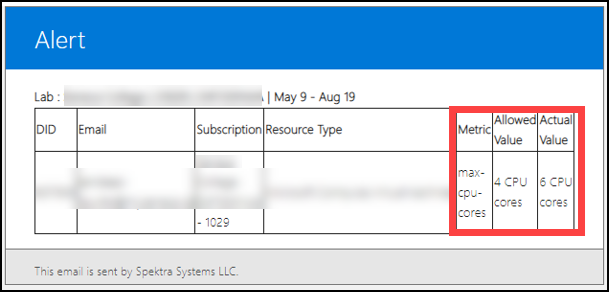
Usage policy is used to monitor cores/clusters of Azure resources. For this policy, we must define the maximum limit of cores/clusters allowed for a user.
The usage policy revolves around these Azure resources - Virtual Machines, Cosmos DB Accounts, SQL Servers/Databases, Virtual Machine Scale Sets and Databricks Clusters, etc.
For Example:You prepared a policy in which the allowed value for the VMis set to** 4 virtual CPU cores**. Now we have two users -** User01and User02**, performing the same lab.** User01creates a VMthat uses 2 coresand User02creates a VMwhich uses 8 cores**.
Here, for both users we will have two different cases as follows:
- Case 1: User01 with 2 cores falls under the allowed value and will not violate the usage policy.
- Case 2: User02 with 8 cores exceeds the allowed value resulting in violating the usage policy.
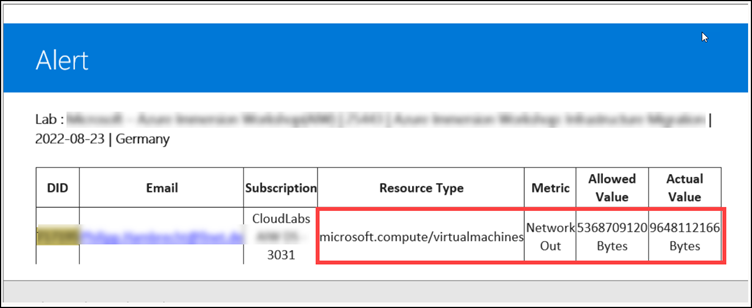
- Once the policy is violated, you will get alerted via email.
- To receive the alert emails, a person/team can provide their email address while setting up the Lab.
Sample Alerts:
We can also define the usage policy for the following resources:
- Microsoft.Compute/virtualMachines
- Microsoft.DocumentDb/databaseAccounts
- Microsoft.Sql/servers/databases
- Microsoft.Compute/virtualMachineScaleSets
- Microsoft.Databricks/workspaces
- Microsoft.Synapse/workspaces/bigDataPools
- Microsoft.Synapse/workspaces/sqlPools etc.
Sample Azure Usage Policy:
https://cloudlabsai.blob.core.windows.net/policy/usage-policy-sample-v1.json
Where to apply usage policy in CloudLabs Portal?
To apply the usage policy, you must navigate to the template section and then you can insert the blob storage/Git Hub URL for the usage policy.

How are we applying policies to the CloudLabs Portal to restrict the environment?
To enable access at specific levels, like resource group and subscription, roles are assigned to users, groups, and service principals. With template permissions, Azure resource access can be restricted to specific users and their respective areas of control, limiting unauthorized activity, and protecting sensitive data.
Here are some examples of what you can do with Template permissions:
- Allow users to create/manage Azure resources in a particular Resource Group by assigning them a Contributor role on the resource group.
- Allow users to view all resources in a subscription, but do not allow them to make any changes by assigning them a Reader role on the subscription level.
- Allow a specific size of the virtual machine and restrict all other sizes.
- Allow users to create only a single storage account and a Linux Virtual Machine.
We will now learn how to assign permissions on CloudLabs Template:
Note: Policy should be handy before moving to the CloudLabs portal to apply.
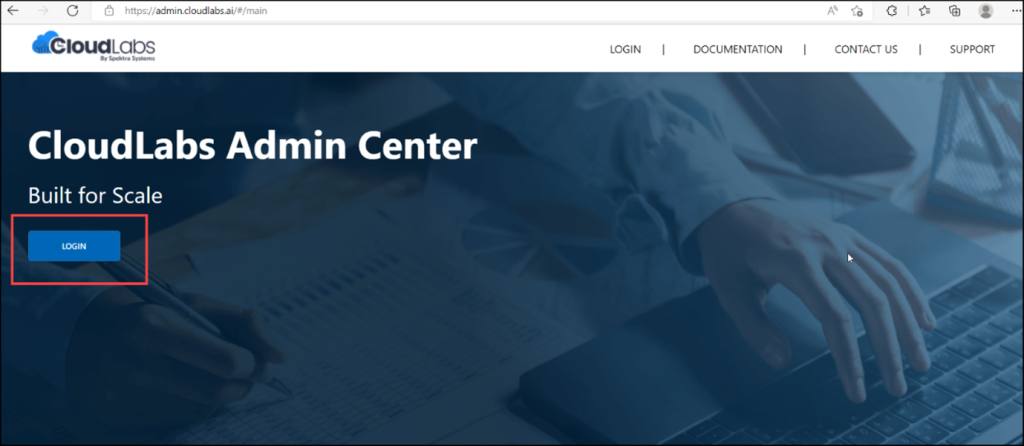
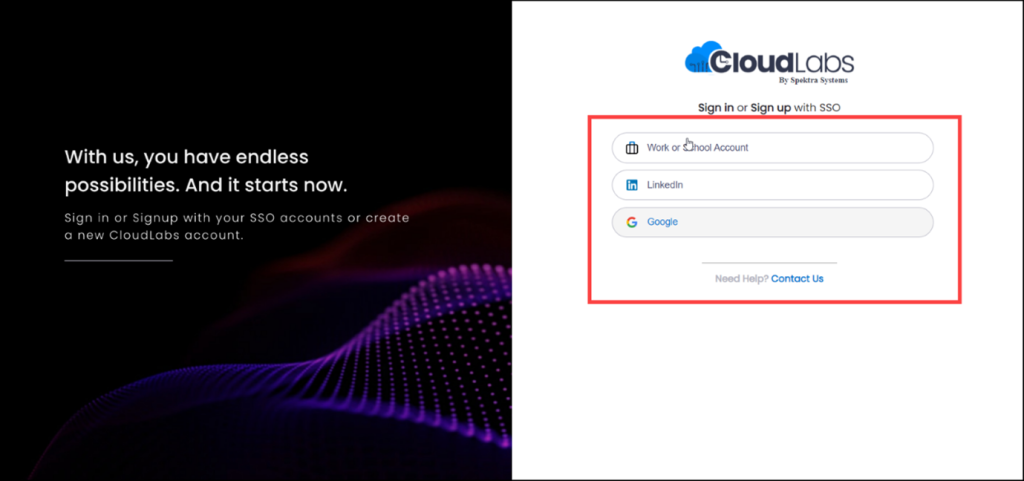
Step 1: Navigate to https://admin.cloudlabs.ai/ and then click on Login.
Step 2: When prompted for a login option, you can select any of the supported options as we provide full support for all login methods.
You can refer following documentation for more details on login options (Access CloudLabs Admin Center | CloudLabs Documentation)
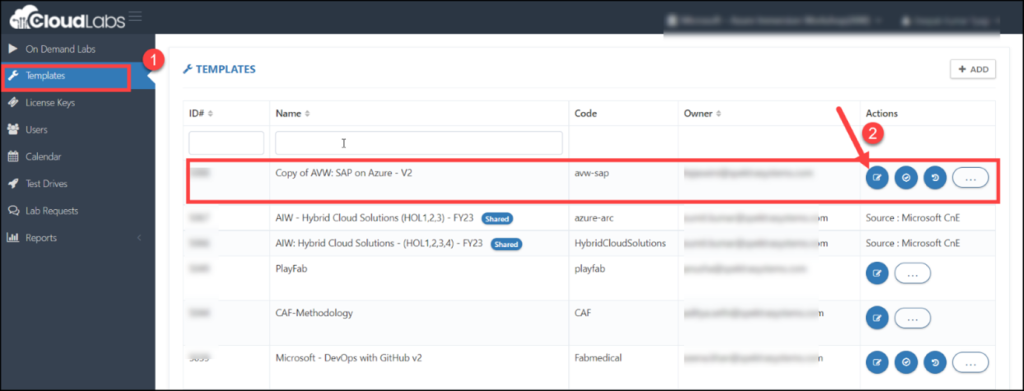
Step 3: Click on Template (1) after successfully logging in. Then, select the template for which you want to configure a policy by clicking on the edit button located in the respective template’s Action pane.
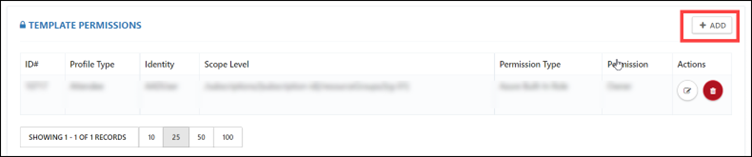
Step 4: After clicking on the edit button, you will be directed to the edit template page, scroll down, and look for ADD TEMPLATE PERMISSIONS. Then click on +ADD to add the policies.
Step 5: Here, you need to click on permission type. The three types of permissions are:
- Azure Built-in Role: Azure built-in roles are a set of pre-defined roles with specific permissions that can be assigned to users, groups, or applications in Azure.
- Azure Custom Role (RBAC): If the Azure built-in roles don’t meet the specific needs of your lab, you can create your own custom roles.
- Custom ARM Policy: Restricts a user by scaling the compliance of Azure resources.
You need to select accordingly.
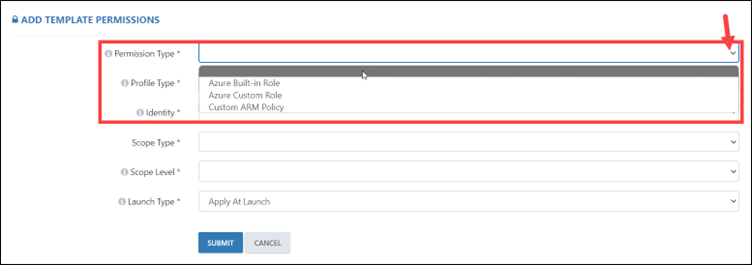
When selecting an Azure Built-in Role, you must also specify the profile type, such as Attendee, Instructor, or Group Member. Additionally, you’ll need to select the identity, scope type, scope level, permission, and launch type. When selecting permissions, it’s important to consider the permission type, such as Reader, Contributor, or Owner.
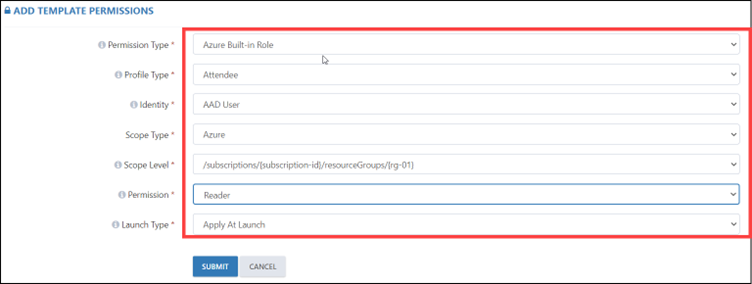
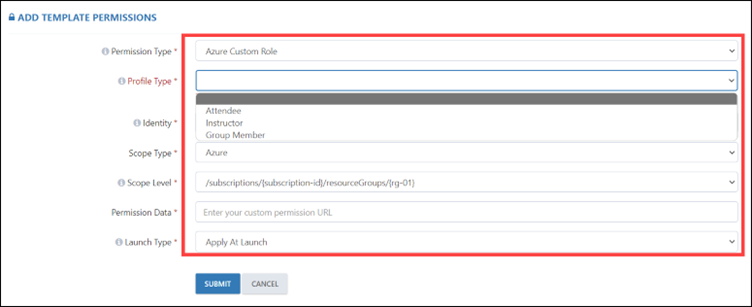
If you are selecting the Azure Custom Role, you need to apply the RBAC policy. For that you need to select the profile type accordingly like Attendee, Instructor, or Group Member. Then, select the identity, scope type, scope level, permission data, and launch type. In permission data, you need to paste the policy blob storage URL.
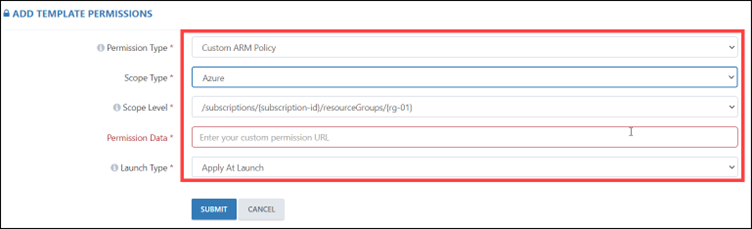
If you are selecting the Custom ARM Policy, you need to select the scope type, scope level, permission data, and launch type. In permission data, you need to paste the policy blob storage URL.
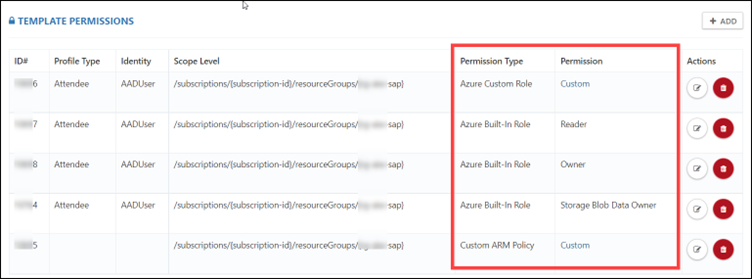
After applying all the policies, we have restricted the environment with various permission types and permission data.
In conclusion, using Azure Policy and RBAC is a powerful way to restrict Azure environments, ensure compliance, manage access, and enable auditing. By implementing policies that align with your organization’s goals and regulations, you can effectively manage and secure your cloud environment.
We hope this blog has provided you with valuable insights and practical tips on how to use Azure Policy and RBAC to control Azure environment’s security and performance.
 Education Migrate From Azure Lab Services Without Breaking Student Experience Azure Lab Services is all set to retire on June 28th, 2027.
  Azure What Happens After Azure Lab Services Retires in 2027? Azure Lab Services has been the go-to platform for educators, IT trainers, and enterprise teams for years, delivering hands-on virtual labs with simplicity...
  Azure Azure Lab Services Is Retiring: What It Means for You? Azure Lab Services is retiring. Here's what it means for educators and training teams, the key timelines, and how to plan your migration to an alternative.