Try Free Microsoft Practice Tests on CloudLabs Teams App
CloudLabs Teams app is a certification readiness platform for Universities, Educational Institutions, Training Centers, etc.

CloudLabs Teams app is a certification readiness platform for Universities, Educational Institutions, Training Centers, etc. Allowing users to try various Microsoft practice tests directly within the Teams workspace.
Free Microsoft Practice Tests Available:
- AZ-900: Microsoft Azure Fundamentals
- AI-900: Microsoft Azure AI Fundamentals
- DP-900: Microsoft Azure Data Fundamentals
- SC-900: Microsoft Security, Compliance, and Identity Fundamentals
- MS-900: Microsoft 365 Fundamentals
- PL-900: Microsoft Power Platform Fundamentals
The below guide explains how to install CloudLabs in your Microsoft Teams workspace and how to use the Practice Tests.
Before you can start using CloudLabs Teams app and the available Microsoft practice tests, you must install it first.
If you have Microsoft Teams already installed, you can skip to Section 2
Here’s a step-by-step guide to help you get started with Microsoft Teams:
Section 1
1. Create an Account
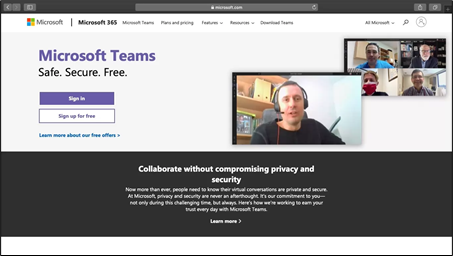
Step 1: Go to the Microsoft Teams webpage and click on the profile icon at the top-right corner of the screen.
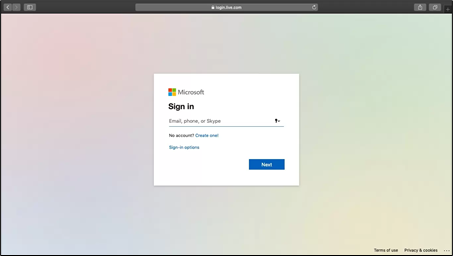
Step 2: In the Sign in the page that appears, click on the Create one! link to set up a new account.
Step 3: On the Create Account window, enter your email address (preferably a work email address) and click on the Next button.
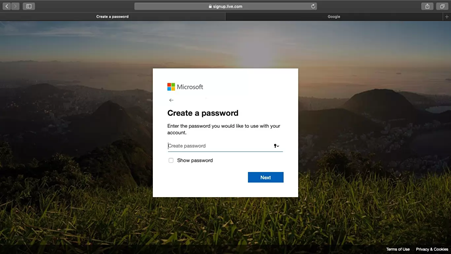
Step 4: Follow the on-screen instructions to create a password and enter your details on the pages that follow.
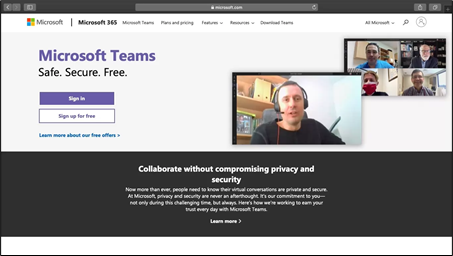
Once you’ve entered all your details and verified your email, visit the Microsoft Teams homepage to begin using the Teams web app.
2. Download Microsoft Teams App
Step 1: To download the Microsoft Teams desktop app, return to the Microsoft Teams web page and click on Download Teams at the top of your screen.
Step 2: Click on the Download for desktop button to page jump to the download link for either Mac OS Windows, depending upon your system.
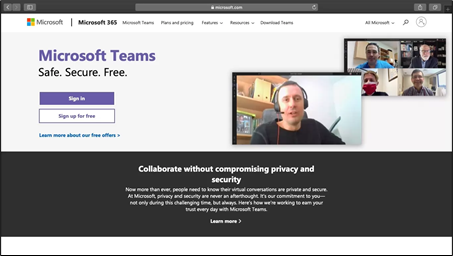
Step 3: Open the downloaded file and follow the instructions provided to install Microsoft Teams.
Step 4: You can now login to Teams using the app.
Section 2:
How to use CloudLabs Teams App
-
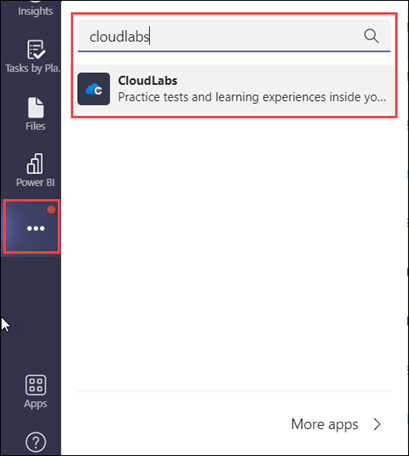
On your Teams Desktop app, click on the three dots (ellipsis) icon as shown below.
-
In the search bar enter CloudLabs, click on it.
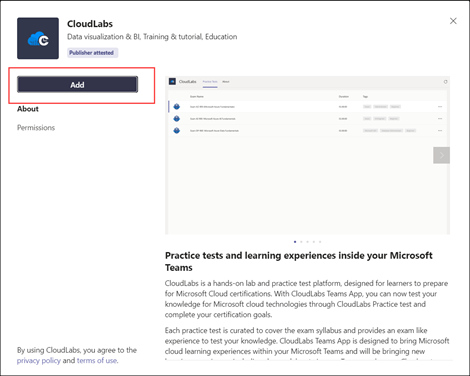
- On the CloudLabs app page, click on the Add button.
- Click on Continue to proceed.
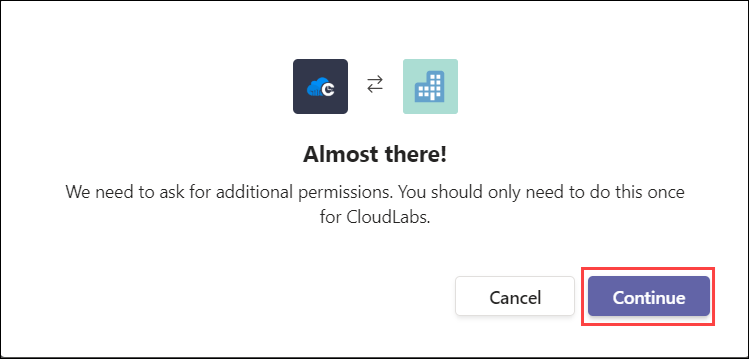
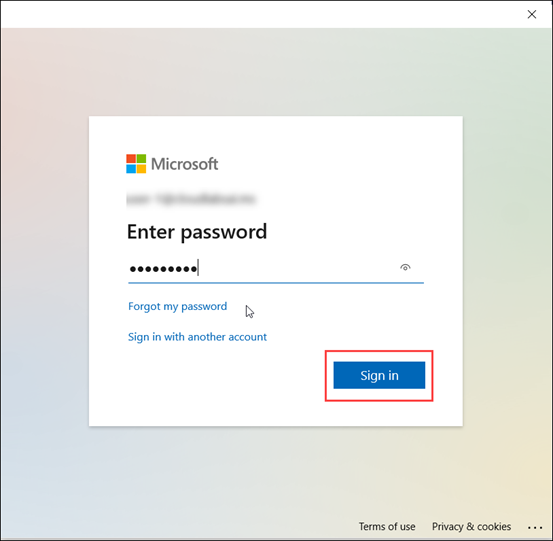
- You may be prompted to log in using your password. Enter your password and click on Sign in.
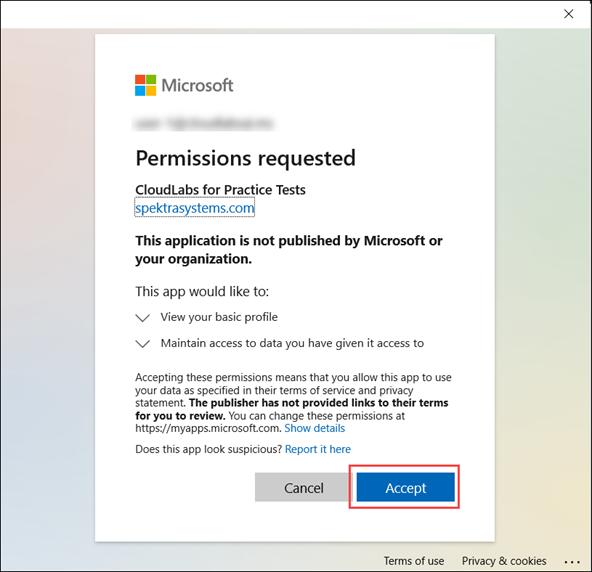
- Click on Accept to proceed.
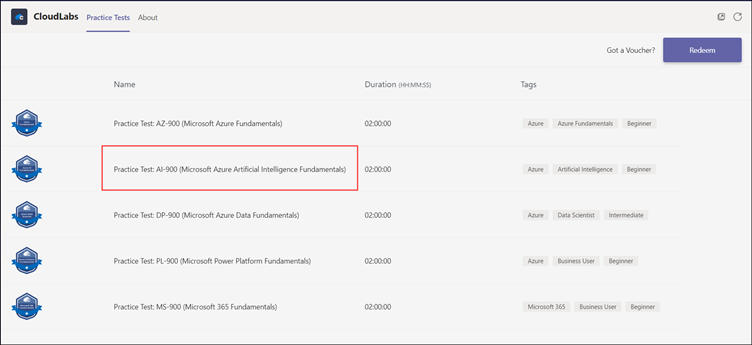
- Once the App is added to the Teams app, the list of the available practice tests will be displayed. Click on the Practice Test you wish to pursue.
- Click on the Take Test button.
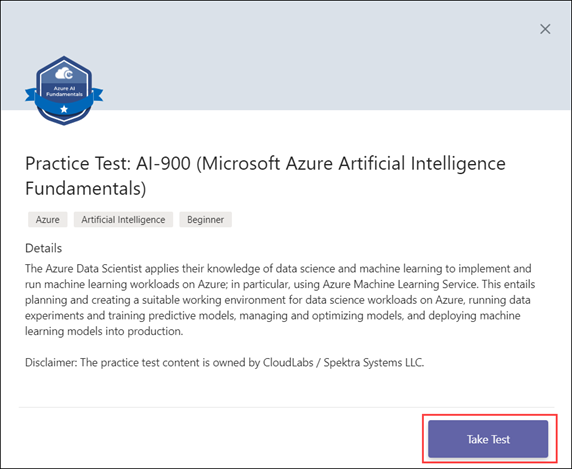
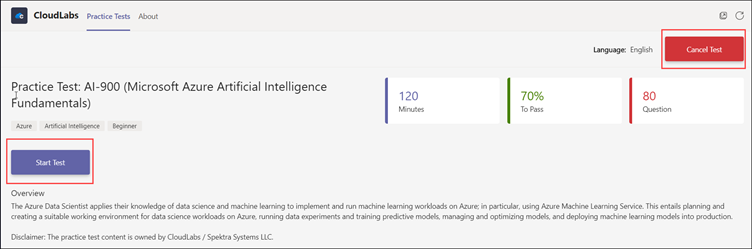
- Click on the Start Test button to start the test and the Cancel Test button to cancel the Practice Test at any moment.
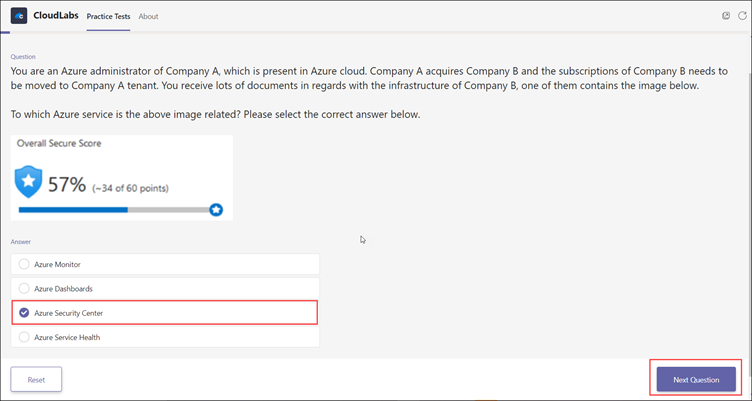
- The answering experience is shown below. Click on the Next Question to proceed to the next question.
- Click on the Finish Test button once all the questions are answered.
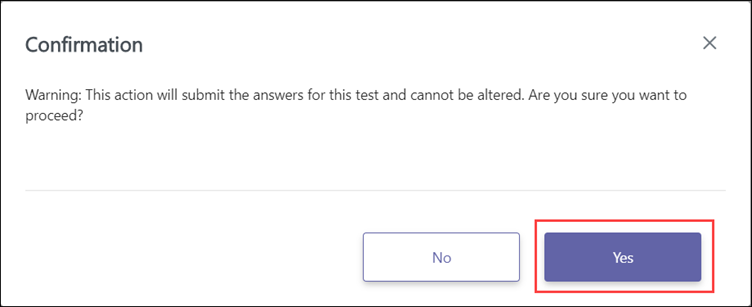
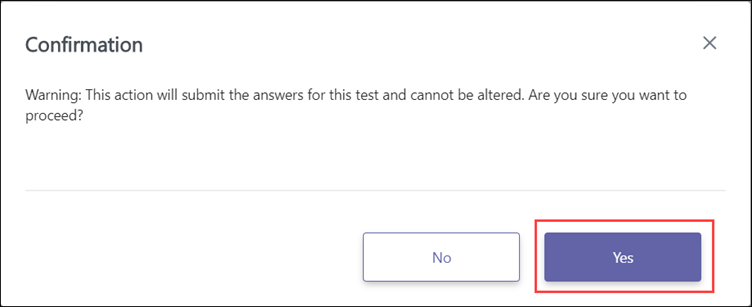
- Upon clicking the Finish Test button, the following pop-up will appear. Click on Yes to proceed.
- Test Completed screen will appear once you proceed. Click on Get Result to get the result.
- If you have passed the test, the page will look like below:
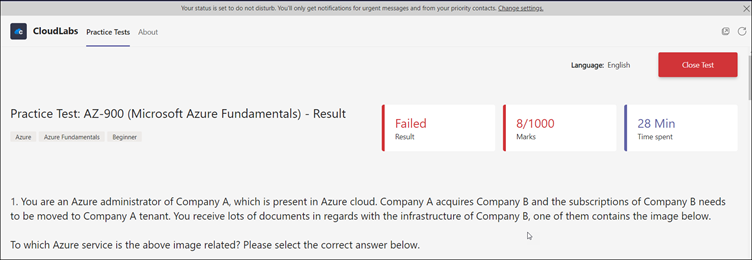
- If you haven’t passed the test, the page will look like below.
-
On the Result page, your responses to the answer and the correct answer will be marked.
-
If the option you chose was the correct answer, the experience will be as below.
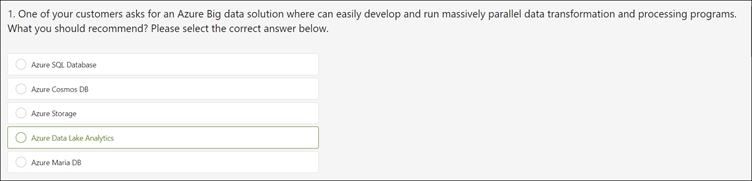
- If the option you chose was the wrong answer, the experience will be as below:
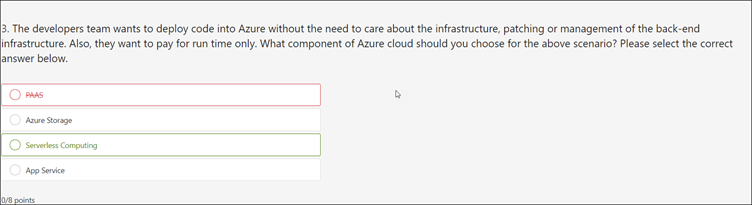
Using CloudLabs Teams App, users can prepare, practice, and explore various certification questions within the Teams App. Turn the accessibility of Microsoft Teams into a certification preparation platform in minutes. Students can accelerate certification readiness and easily test knowledge of Microsoft cloud technologies and complete certification goals.
In addition to fundamental exams, CloudLabs also provides practice tests for various other Microsoft official exams such AZ-104 (Azure Administrator), DP-203 (Data Engineering on Microsoft Azure), etc.
Please contact psm-cloudlabs@spektrasystems.com to inquiry about bulk purchases or any other sales inquiry.
Author- Amit Malik
 Education Fall 2026 Checklist for Universities: Are Your Virtual Labs Ready for the Next Semester? As universities prepare for the Fall semester 2026, lab readiness becomes a priority.
  Education Virtual Computer Labs at Scale: Challenges Universities Face Today Students, at a global scale, are increasingly embracing digital learning as an integral part of their educational journey.
 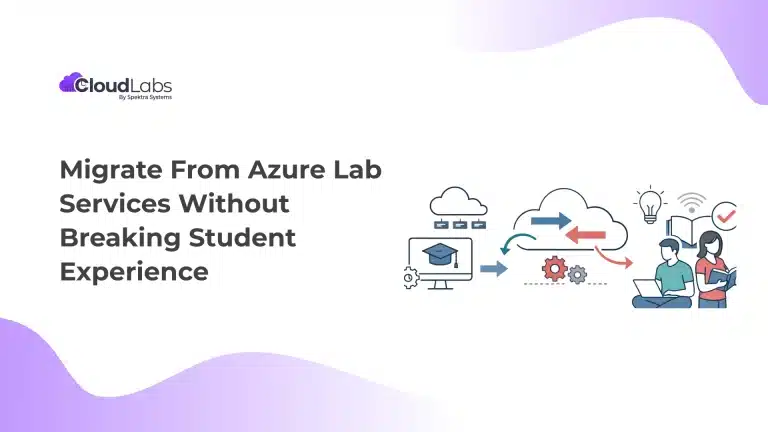 Education Migrate From Azure Lab Services Without Breaking Student Experience Azure Lab Services is all set to retire on June 28th, 2027.